

How to Configure HART Devices Using the AMS Trex Communicator: A Step-by-Step Guide
Maya
6 min read

Setting up a new pressure or temperature transmitter in the field shouldn’t require a bulky toolbelt of power supplies, multimeters, and resistors. The AMS Trex Device Communicator allows you to power, configure, and troubleshoot HART devices directly using its built-in internal power module (which includes a 167 Ω resistor).
In this comprehensive guide, you will learn the exact Trex setup process, how to navigate the Field Communicator app, and how to verify loop health on the spot without ever returning to the maintenance shop.
1. Pre-Configuration Checks & Safety Requirements
Before initiating any HART device configuration, safety and compliance must be your top priority, especially in hazardous industrial environments.
- Intrinsically Safe Certifications: Ensure your specific Trex model is rated for the area you are entering. The AMS Trex carries global intrinsically safe certifications including ATEX, IECEx, CSA, and FISCO. Always check the label on your device before entering a Zone 0 or Zone1 environment.
- Physical Inspection: Verify that the transmitter housing is securely closed (if powered by the loop) or properly isolated if you are performing a bench configuration.
- Startup Time: Power on the Trex unit. Thanks to its optimized OS, you can expect a rapid 15-second startup, getting you ready for configuration almost instantly.
2. Understanding the Trex User Interface & Hardware
Navigating the Home Screen
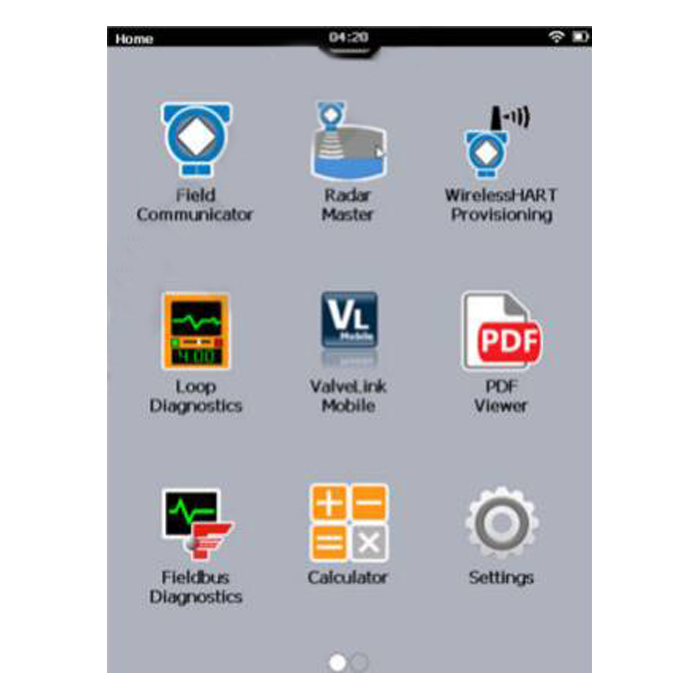
The Home Screen displaying installed applications
The first screen you encounter after powering on the AMS Trex is the Home Screen. Its interface is designed to be intuitive, similar to modern smartphones, making field usage fast and straightforward. The status bar at the top provides crucial information like battery level and connectivity. The main area displays icons for installed applications, such as the Field Communicator (for HART and FOUNDATION Fieldbus devices), ValveLink Mobile (for advanced control valve diagnostics), and Settings. This immediate access allows technicians to jump directly into device configuration and troubleshooting without navigating complex menus.
Quick Access with the Shortcut Bar
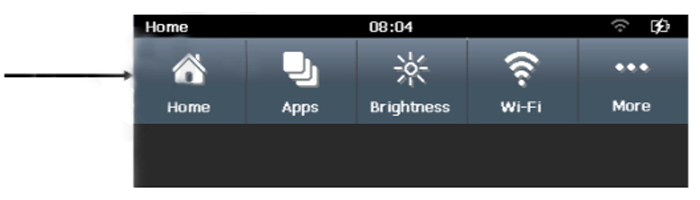
The Shortcut Bar for quick settings and app management
A highly practical feature is the slide-down Shortcut Bar, accessible during any application use. This menu provides vital options for device management: Home returns you to the main screen, Apps lets you manage background applications (useful for battery optimization), and direct controls for screen Brightness and Wi-Fi configuration are available. The ability to quickly adjust screen brightness is particularly advantageous when moving between shaded areas and direct sunlight in industrial environments, significantly enhancing the operator’s efficiency.
Combining Touchscreen and Physical Keypad
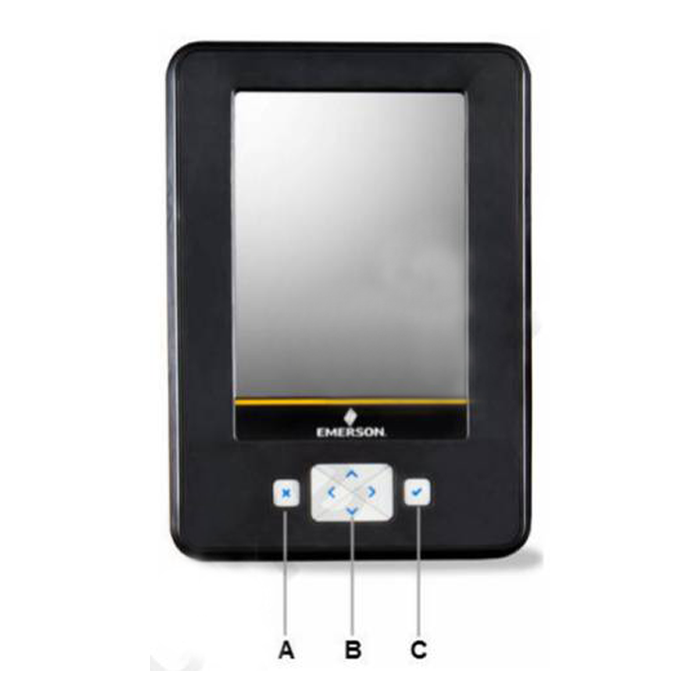
Physical navigation buttons (Keypad)
While the Trex features an advanced touchscreen, industrial environments often require working with thick gloves. To address this, an ergonomic physical keypad is integrated below the screen. These keys allow full menu navigation: arrow buttons move across options, the checkmark selects items, and the ‘X’ button cancels changes or closes menus. This thoughtful combination of touchscreen input and physical buttons ensures reliability and speed for technicians working in any condition.
3. Step 1: Wiring & Powering the Loop
One of the biggest pain points in traditional HART device configuration is finding a power source in the field. The Trex communicator eliminates this through its “Power the Loop” functionality.
For an unpowered transmitter (Bench Setup or Field Setup):
- Locate the lead set provided with your Trex.
- Connect the red lead to the terminal marked
HART + pwron the top of the Trex communicator. - Connect the black lead to the
HART -terminal. - Attach the alligator clips to the corresponding positive and negative terminals on your HART transmitter.
Engineering Note: When using the HART + pwr terminal, the Trex automatically engages its internal 167 Ω resistor. You do not need to wire an external 250 Ω resistor in series to establish communication, saving you significant time and wiring hassle.
4. Step 2: Navigating the Field Communicator App
Once physically connected, it is time to establish digital communication.
- Launch the Application: From the Trex home screen, tap the Field Communicator app. This is Emerson’s primary application for configuring and troubleshooting smart devices.
- Auto-Polling: The Trex will automatically begin polling for connected devices. Once it detects the HART signal, it will load the Device Description (DD) file associated with that specific transmitter model.
- Entering Device Setup: On the main dashboard, navigate to Configure > Guided Setup or Basic Setup (menu paths may vary slightly depending on the transmitter’s specific DD).
Key Parameters to Configure:
- Tag Name: Assign the instrument tag (e.g., PT-101) so it is easily identifiable in the control system.
- Units: Select the engineering units (e.g., Bar, PSI, °C).
- Range Values: Set the Lower Range Value (LRV) and Upper Range Value (URV) to match your process requirements (e.g., 0 to 100 Bar mapped to 4-20 mA).
- Damping: Adjust the damping parameter if your process experiences rapid, noisy fluctuations (e.g., setting a 2-second delay to smooth the signal).
Pro Tip: Always double-check your LRV and URV. Incorrect range mapping is the leading cause of commissioning delays. By using the Trex interface to visualize these changes in real-time, you prevent configuration from becoming a critical path item on your project schedule.
5. Step 3: Verification and Advanced Troubleshooting
Once your parameters are committed and sent to the device, the final step is to verify loop integrity.
- Verify Loop Health: Exit the Field Communicator app and launch the Loop Diagnostics app. This built-in tool allows you to accurately measure loop voltage and loop current without needing a separate digital multimeter. Verify that the current output aligns perfectly with the physical process value you just configured.
- On-the-Spot Troubleshooting: If the control room isn’t receiving the correct 4-20 mA signal, use the Trex to isolate the problem. According to Emerson’s field data, technicians can identify issues such as faulty transmitters, broken wiring, or bad barrier connections directly from the device, significantly reducing downtime.
- Offline Syncing: Save your device configurations offline on the Trex unit. At the end of your shift, you can seamlessly sync these configurations to your AMS Device Manager database via Wi-Fi or USB.
Optimize Your Field Operations Today!
Relying on outdated configuration methods or carrying multiple test tools only adds unnecessary time to your commissioning schedule. The AMS Trex Communicator, with its intrinsically safe design and built-in diagnostics, is engineered to streamline your workflow.
Ready to eliminate configuration bottlenecks on your site?
How do I power a transmitter with the AMS Trex?
Connect the lead set to the HART + pwr and HART - terminals on the Trex, then attach the clips to the transmitter. The device will automatically power the loop once you open the Field Communicator or Loop Diagnostics app.
Can I configure a device that is already powered by the loop?
Yes. However, do not use the HART + pwr terminal. Use the standard HART communication terminals to avoid voltage conflicts and ensure safe communication.
What should I do if the Trex doesn't recognize my HART device?
Ensure that the latest Device Description (DD) files are installed on your unit. You can easily update these files using Emerson's Upgrade Studio software.
Share






 Bench Multimeters